How to use the tracker
The tracker is where every LastTrack song is made, whether it's a collab or a battle entry. This guide covers every control, on a phone and on a computer. New to trackers? Start with what a tracker is.
The screen
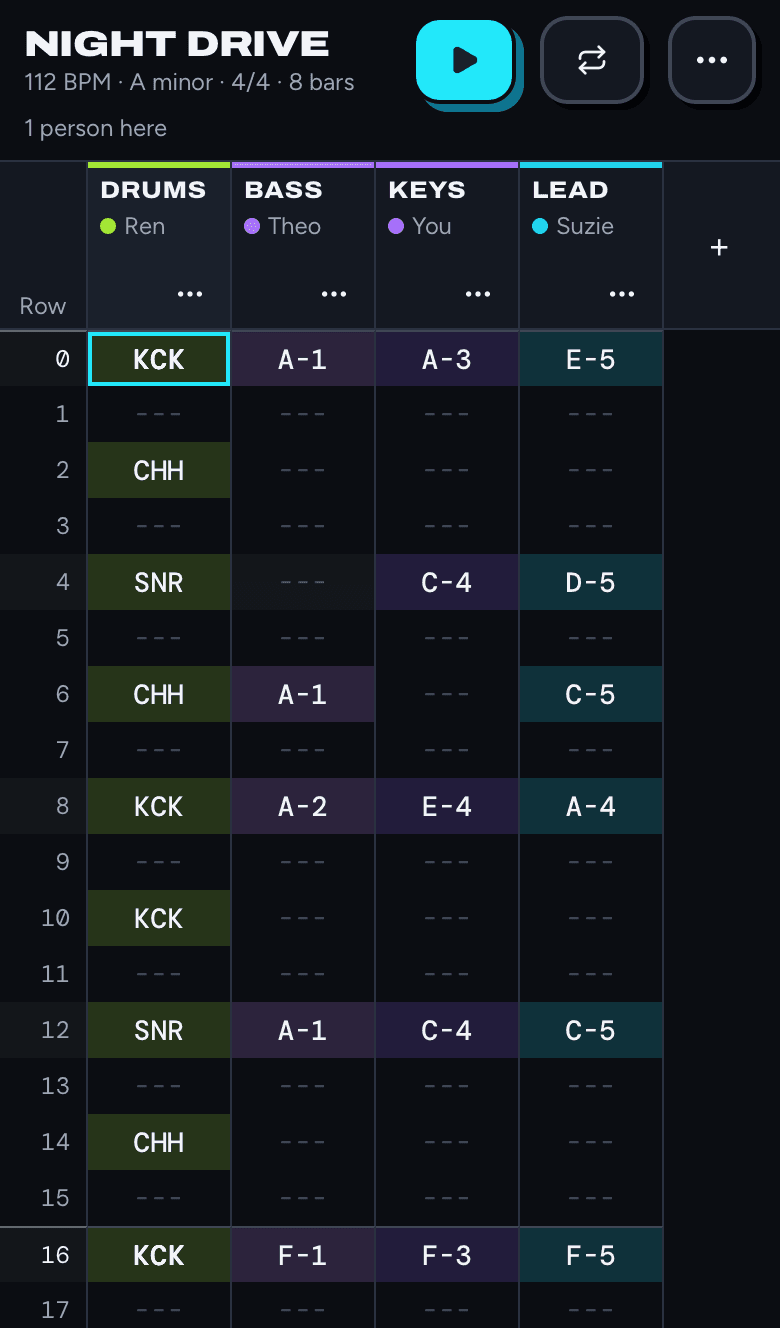
- At the top: the song's name, tempo, key, time signature and length, and how many people are here right now.
- Play starts the song from the top and turns into Stop while it plays. Loop repeats a range of bars. The ⋯ button opens Share, Settings, Activity and author colours. On a computer these are buttons along the top.
- Each column is a track, with its name and the nickname of the person who made it. Each numbered row is a step. With 4 steps per beat, a bar is 16 rows, and the shaded rows mark the beats.
- A note shows as its name and octave, like A-4 or C#5. Drum hits show short names, like KCK. Three dashes (---) mean nothing new happens on that row.
The first time you open a song, tap Tap to enable sound. Browsers only start audio after a tap. If you still hear nothing on an iPhone, check that the ring/silent switch isn't on silent, and turn the volume up.
Enter notes on a phone
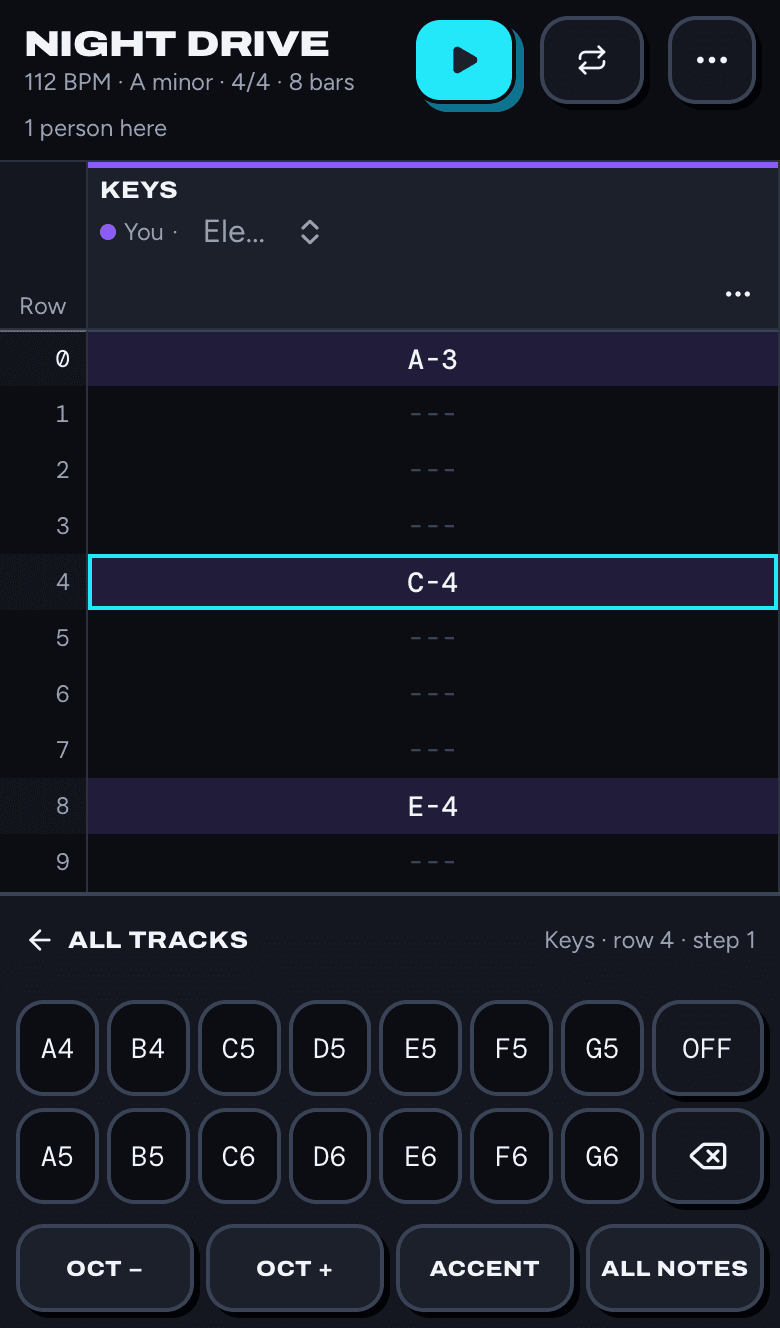
- 1Tap any row in a track. The track zooms in and the keypad opens.
- 2Tap a note on the keypad. It goes into the selected row and the cursor moves down one row, ready for the next note.
- 3Tap another row to jump there, or tap All tracks to see every track again.
The keypad buttons:
- Note keys: two octaves of notes in the song's key, so everything you tap fits.
- OFF stops the note that's playing on this track at this row. Without an OFF, a note keeps sounding until the next note.
- The delete key (⌫) clears the note in the selected row.
- OCT − and OCT + move the keypad down or up an octave.
- ACCENT makes the notes you enter next louder. Tap it again to go back to normal.
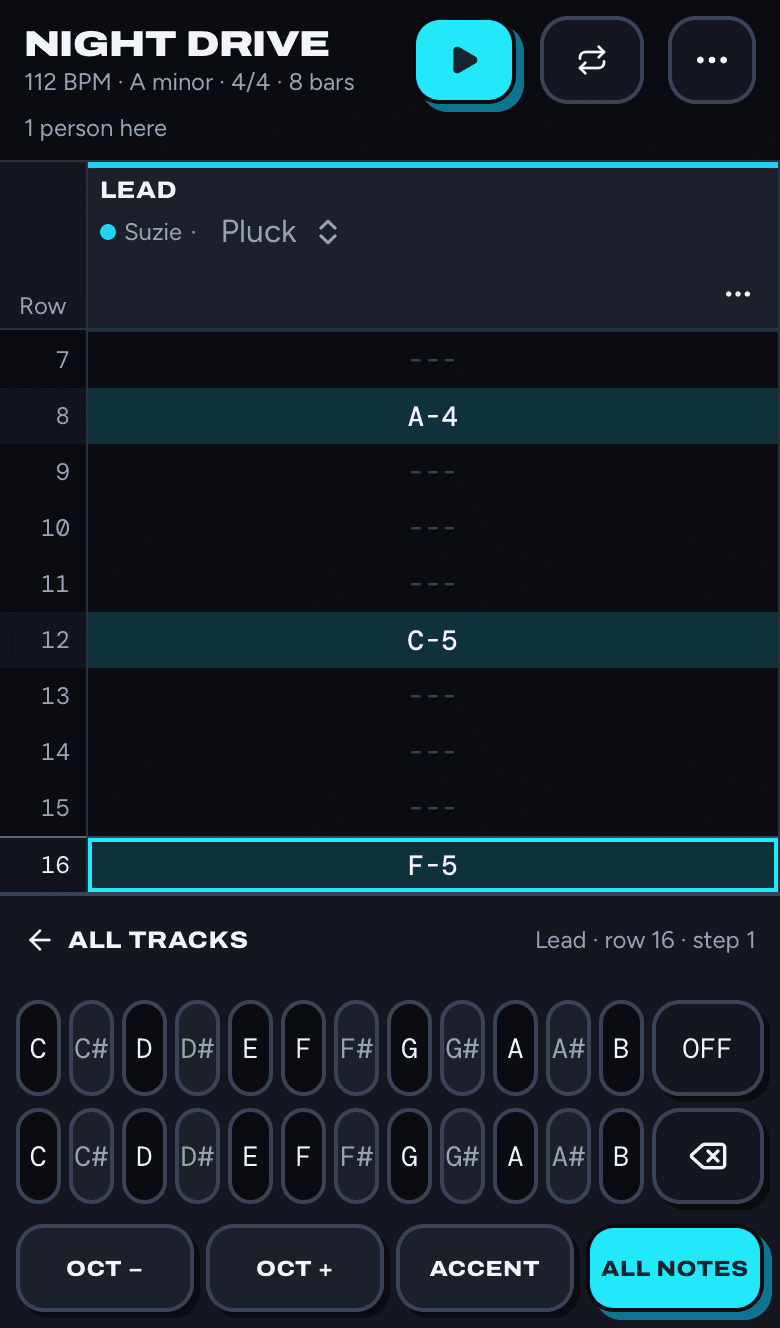
- ALL NOTES shows all 12 notes, including the ones outside the key. Tap it again to go back to notes in the key.
Drums
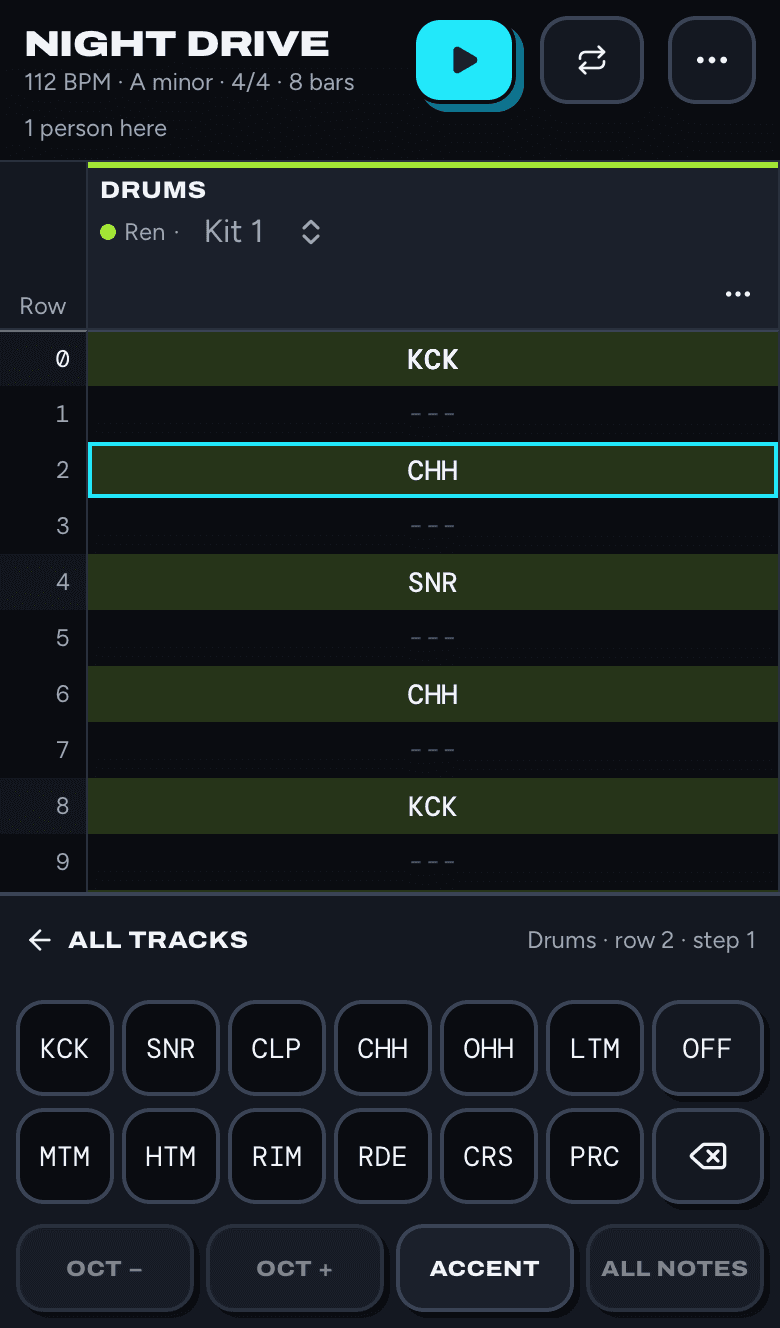
Drum tracks use the Kit 1 instrument, and their keypad shows the kit: KCK kick, SNR snare, CLP clap, CHH closed hat, OHH open hat, LTM, MTM and HTM low, mid and high toms, RIM rim, RDE ride, CRS crash, and PRC percussion.
A drum track plays one sound per row, like any track. To play a kick and a hat on the same row, add a second drum track.
Accents and soft notes
Every note has a loudness: normal, accent (louder) or soft (quieter).
- To change a note that's already there, press and hold it. Each hold moves it to the next one: normal, then accent, then soft, then back to normal. The track's header shows which one it's now on.
- To enter new notes as accents, turn on ACCENT on the keypad.
Play and loop
Tap Play to hear the song from the top. The playhead line moves down the rows and the screen follows it. Playback stops a little after the last note.
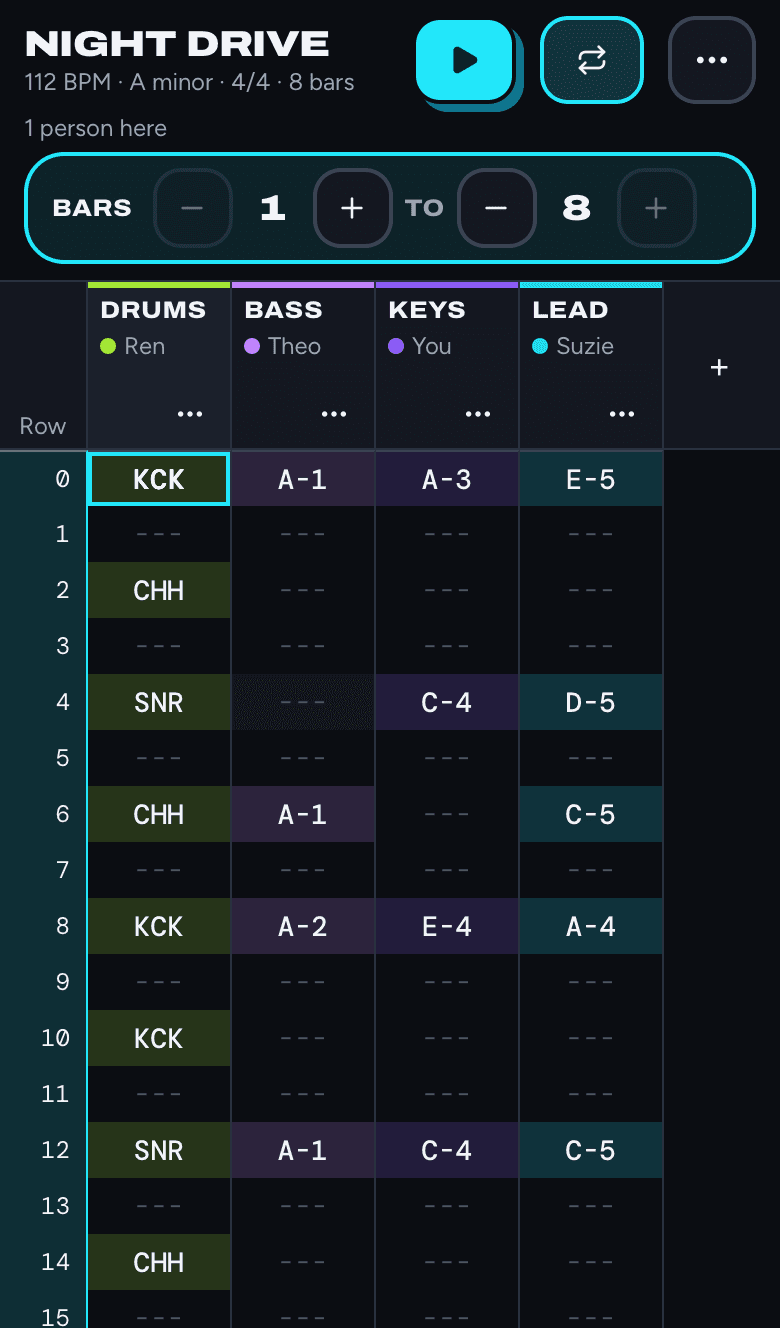
Tap Loop to repeat part of the song. Choose the first and last bar with the minus and plus buttons. Looping is handy while you write a part: the loop keeps going while you add notes. In a collab your loop is just for you, and in a battle entry it's saved with your song.
Add a track
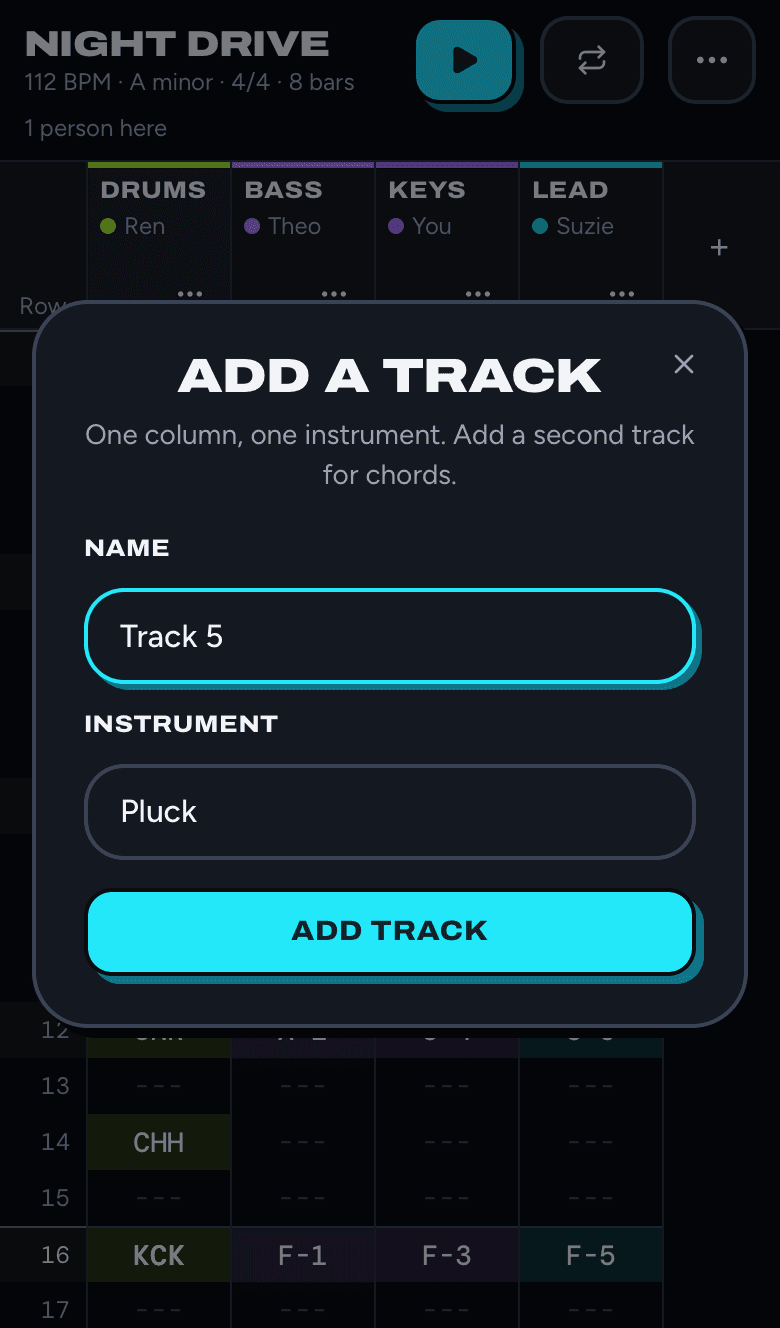
Tap + at the end of the track headers (+ Add track on a computer), give the track a name, pick an instrument and tap Add track. The instruments are Kit 1 (drums), Sub (bass), Pluck, Piano, Electric piano, Guitar, Horns, Strings, Square and Noise.
Each track plays one note at a time. For chords, add another track with the same instrument. A song holds up to 12 tracks, and the song's owner can limit how many each person adds.
To change a track's instrument later, zoom into the track and tap the instrument name in its header.
Track settings: volume, mute, solo and more
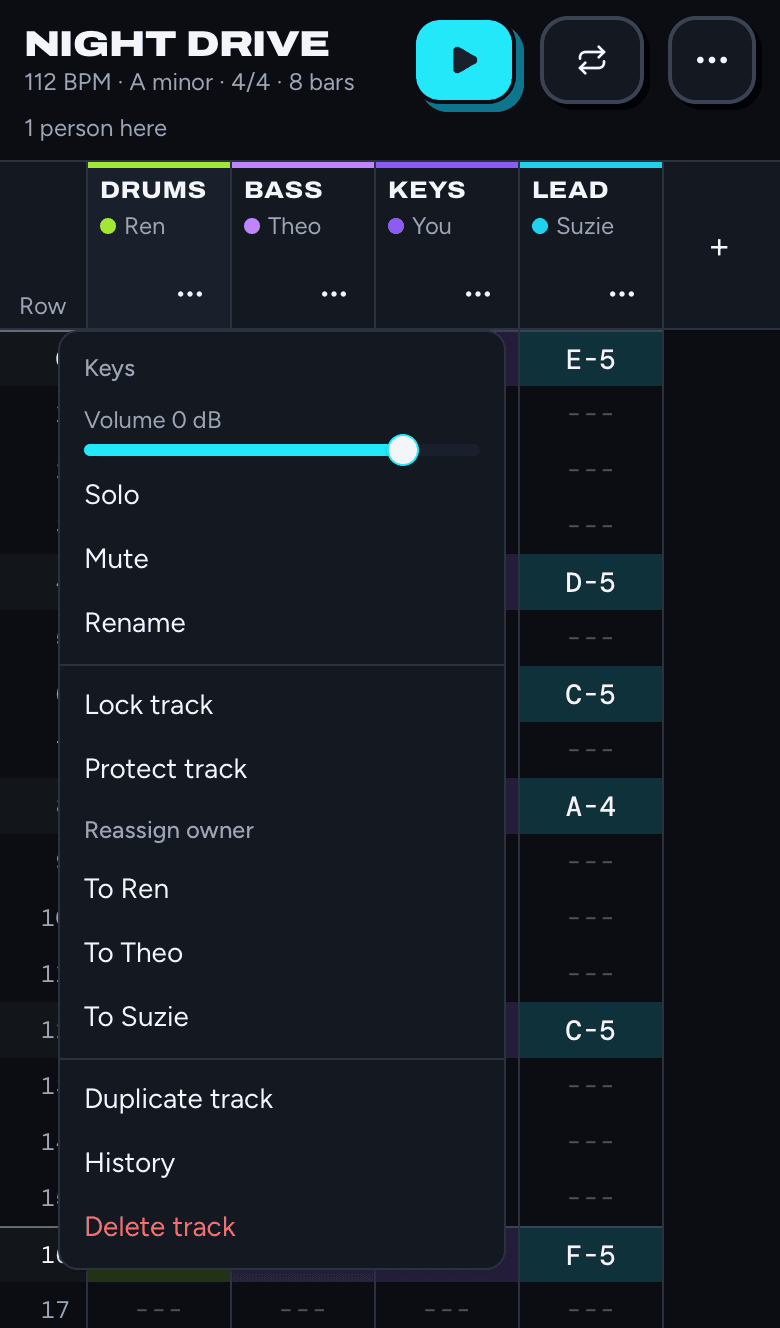
Tap ⋯ on a track's header to open its menu. What you see depends on who you are in the song.
- Volume: slide to make the track quieter or louder. Everyone hears the change.
- Solo: hear only this track (and any other soloed tracks). Solo is just for you, so it doesn't change what anyone else hears.
- Mute: silence the track for everyone, without deleting anything. Tap Unmute to bring it back.
- Rename: give the track a new name.
- Lock track: freeze the track's notes so nobody changes them by accident. Unlock it to edit again.
- Protect track (song owner only): keep a track safe from everyone else, even when anyone can edit any track.
- Reassign owner (song owner only): hand a track to someone else in the song.
- Duplicate track: make a copy of the track, notes and all. It's a quick way to start a variation or a harmony.
- History: see every saved version of the track and go back to one (more below).
- Delete track: remove it for everyone. Its saved versions are kept for 7 days.
- Request edit: shows when someone else is editing the track, to ask them for a turn.
Undo, history and restoring
- On a computer, Ctrl+Z (Cmd+Z on a Mac) undoes and Shift+Ctrl+Z or Ctrl+Y redoes.
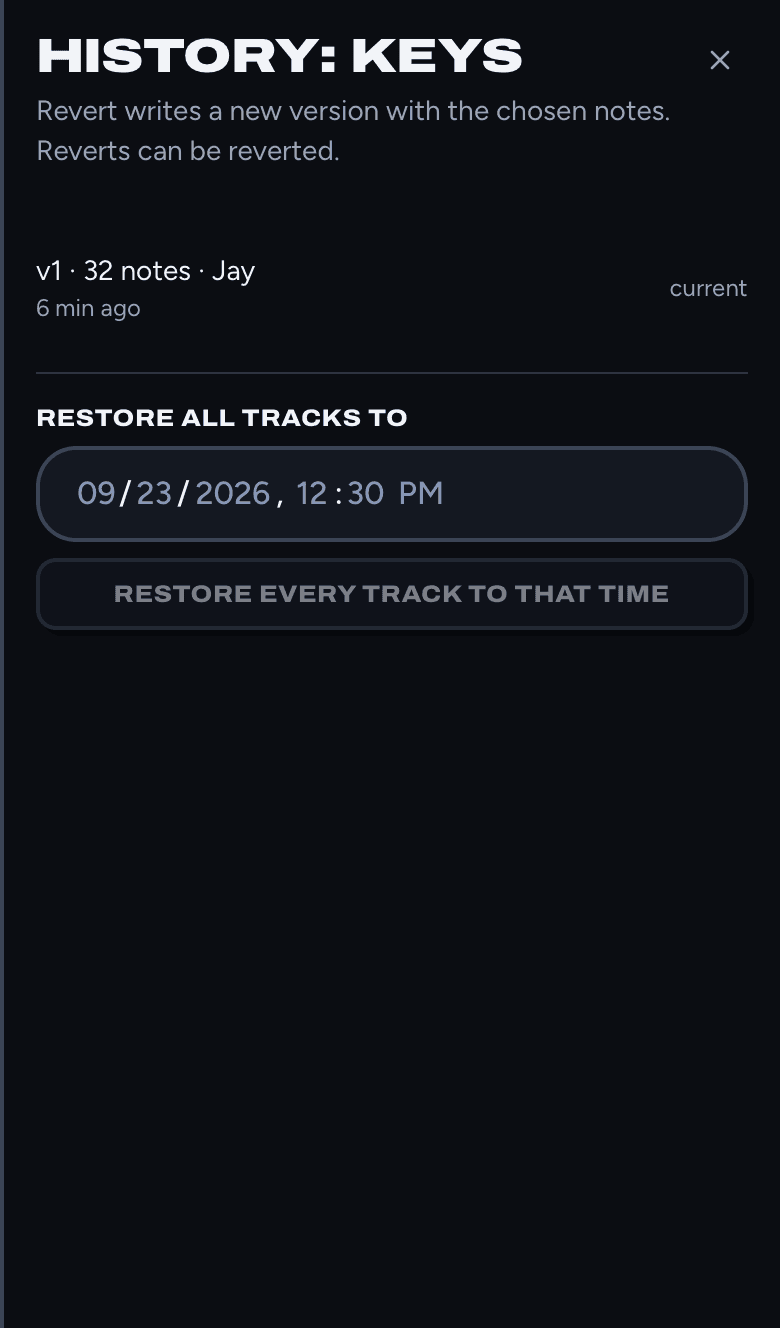
- Track history: open the track menu and tap History. Revert to vN brings back that version as a new version, so you can always change your mind again.
- Restore all tracks (song owner only): pick a date and time and tap Restore every track to that time.
Make the song longer
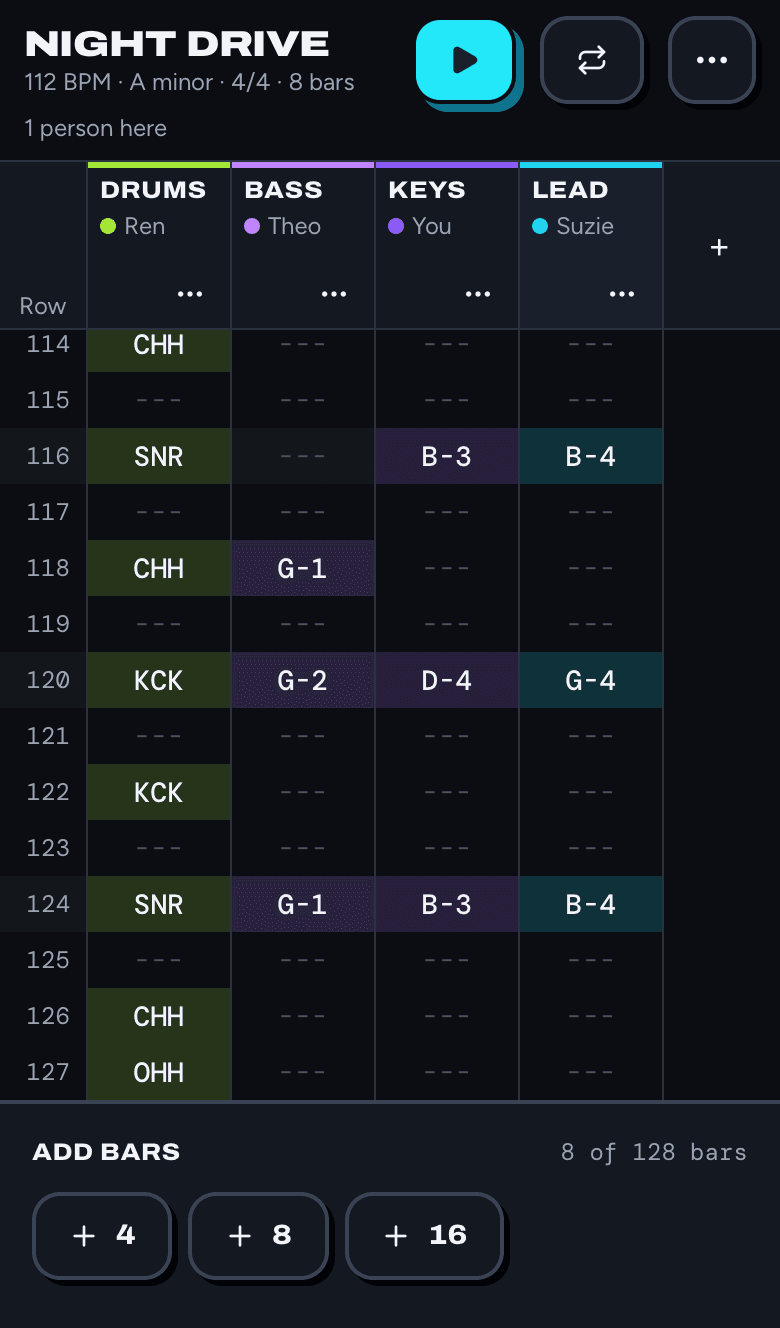
Scroll to the end of the grid and tap +4, +8 or +16 under Add bars. A song can be up to 128 bars long. If the last bars are empty, you can remove them there too. In a battle, the round may set the most bars you can use.
Song settings
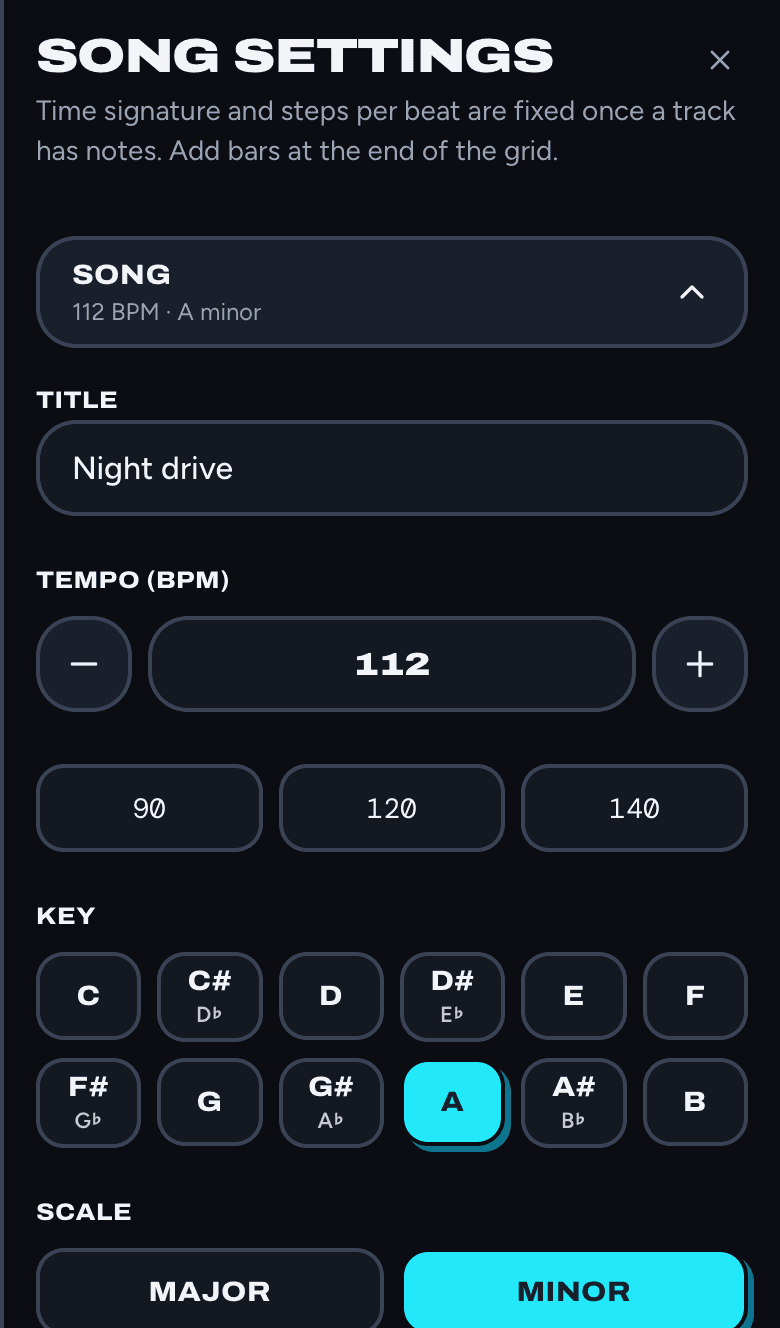
The song's owner opens ⋯ and then Settings (Settings along the top on a computer).
- Title, tempo (40 to 240 beats per minute), key and scale. Changing the key doesn't move existing notes. It changes which notes the keypad shows.
- Time signature and steps per beat are fixed once a track has notes.
- Collaboration: who can edit tracks, how many tracks each person can add, and Lock the song, which stops everyone from adding tracks or editing notes until you unlock it.
Tap Save settings when you're done.
Saving and working offline
Everything saves on its own a moment after you stop tapping. The top of the screen says Saving… and then Saved. If you lose signal, it says Offline. Saved on this phone. Your edits wait on your phone and send themselves when you're back online, even if the page closes in between.
If someone changes a track while you were editing it, LastTrack asks what to do: Reload theirs, Keep mine as a new track, or Compare.
Tap ⋯ and then Activity to see who did what in the song, newest first.
Export audio, MIDI and more
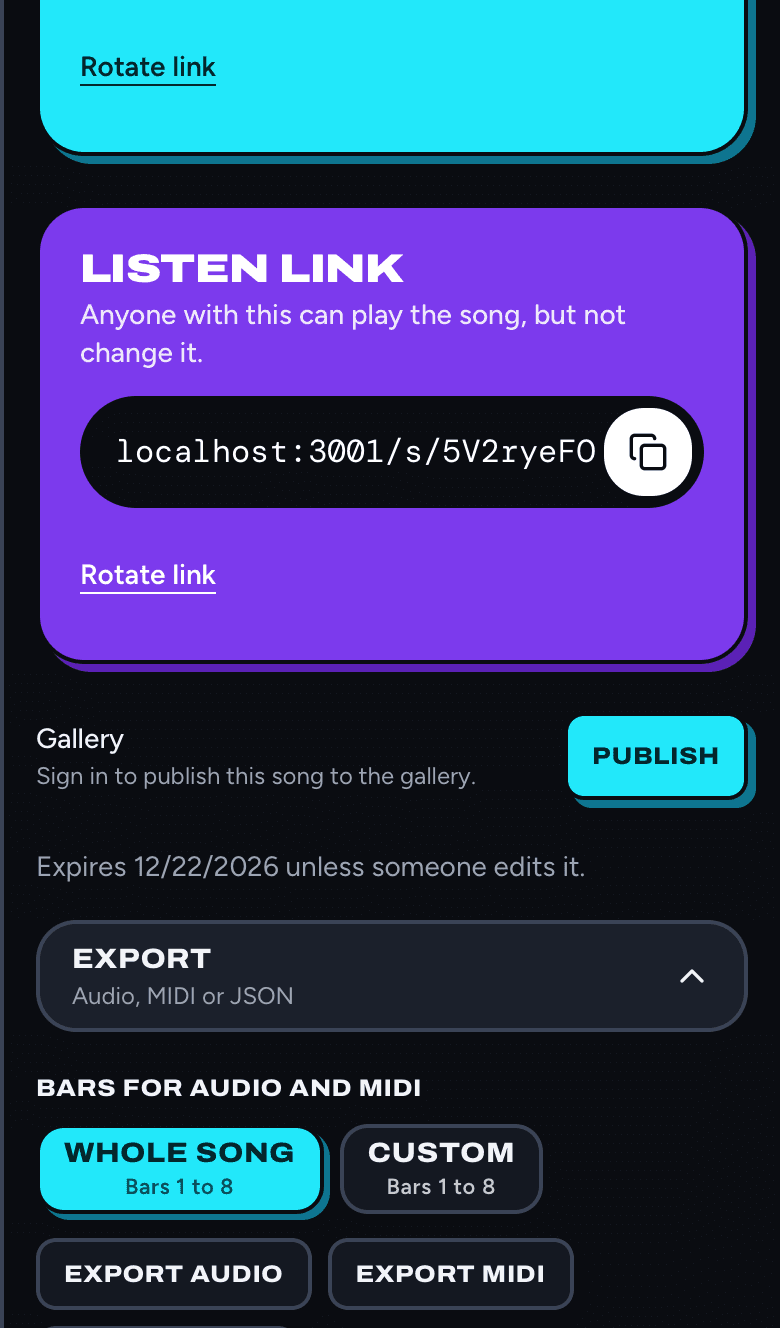
Open Share (⋯ and then Share on a phone) and open Export. Choose the whole song, your loop, or a custom range of bars, then:
- Export audio saves a WAV file you can share or use anywhere.
- Export MIDI saves the notes for another music app.
- Export JSON saves the whole song as data.
Keyboard shortcuts on a computer
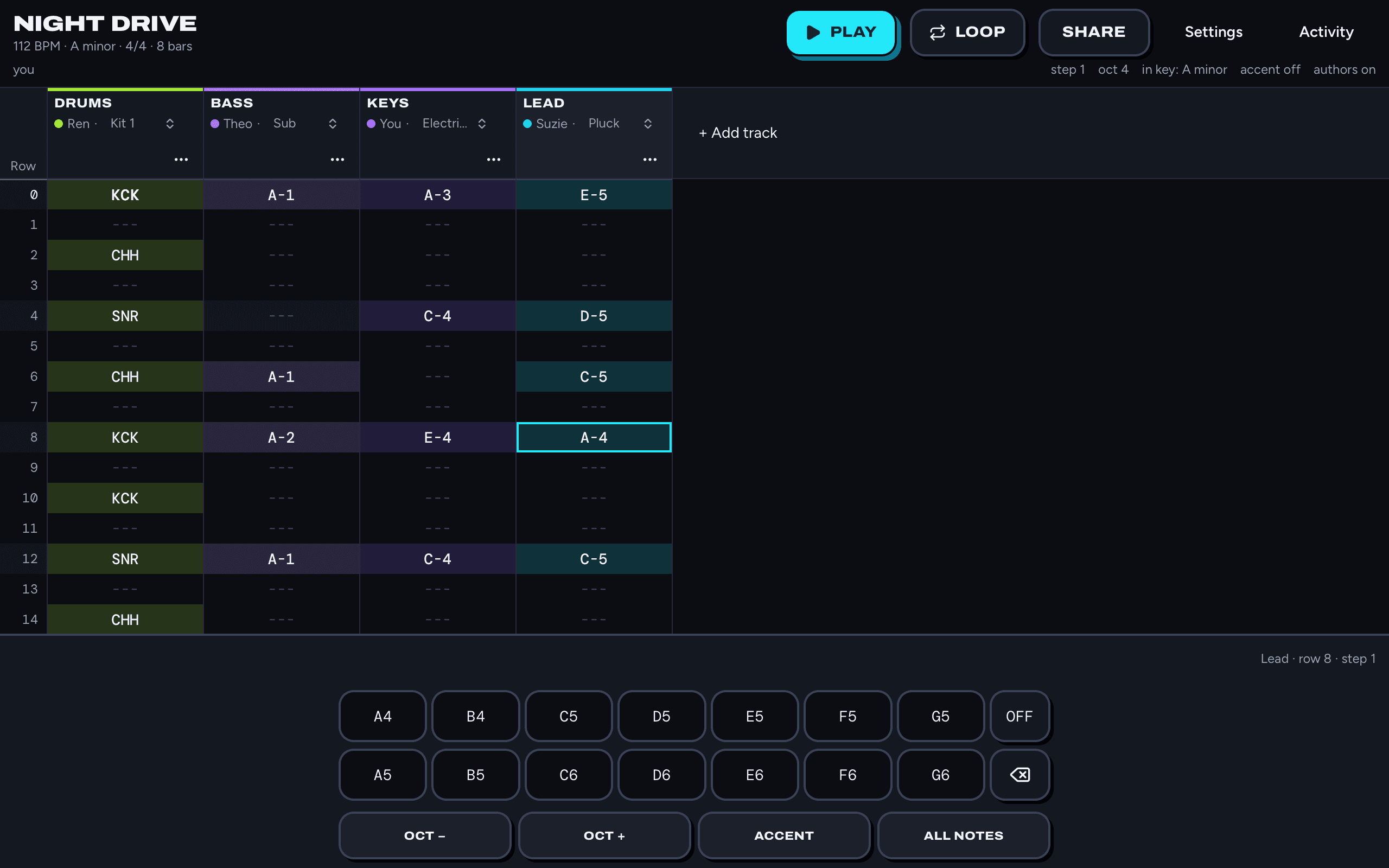
Click a row to put the cursor there. The keypad works with a mouse, and these keys work too:
- Z X C V B N M
- Notes in the song's key, one octave
- Q W E R T Y U
- The same notes, an octave higher
- [ and ]
- Octave down and up
- `
- All notes on or off, with a piano layout
- Shift+Enter
- OFF
- Delete
- Clear the note
- '
- Normal, accent or soft for the note
- 0 to 8
- Step: how many rows the cursor moves after each note
- Arrows
- Move around; Tab and Shift+Tab change track
- Page Up / Down
- Jump a bar
- Space
- Play from the cursor, or stop
- Enter
- Play from the top, or stop
- Esc
- Stop
- Ctrl+Z / Ctrl+Y
- Undo and redo (Cmd on a Mac)
On a drum track, Z to / play the first ten kit sounds in keypad order, and Q and W play crash and percussion.
Next
Make a song with friends in a collab, or take them on in a battle.