Make a song with friends
A collab is one song that you and your friends build together. You start it, send a link, and everyone adds their own tracks from their phone or computer. Nobody needs an account.
Start a collab
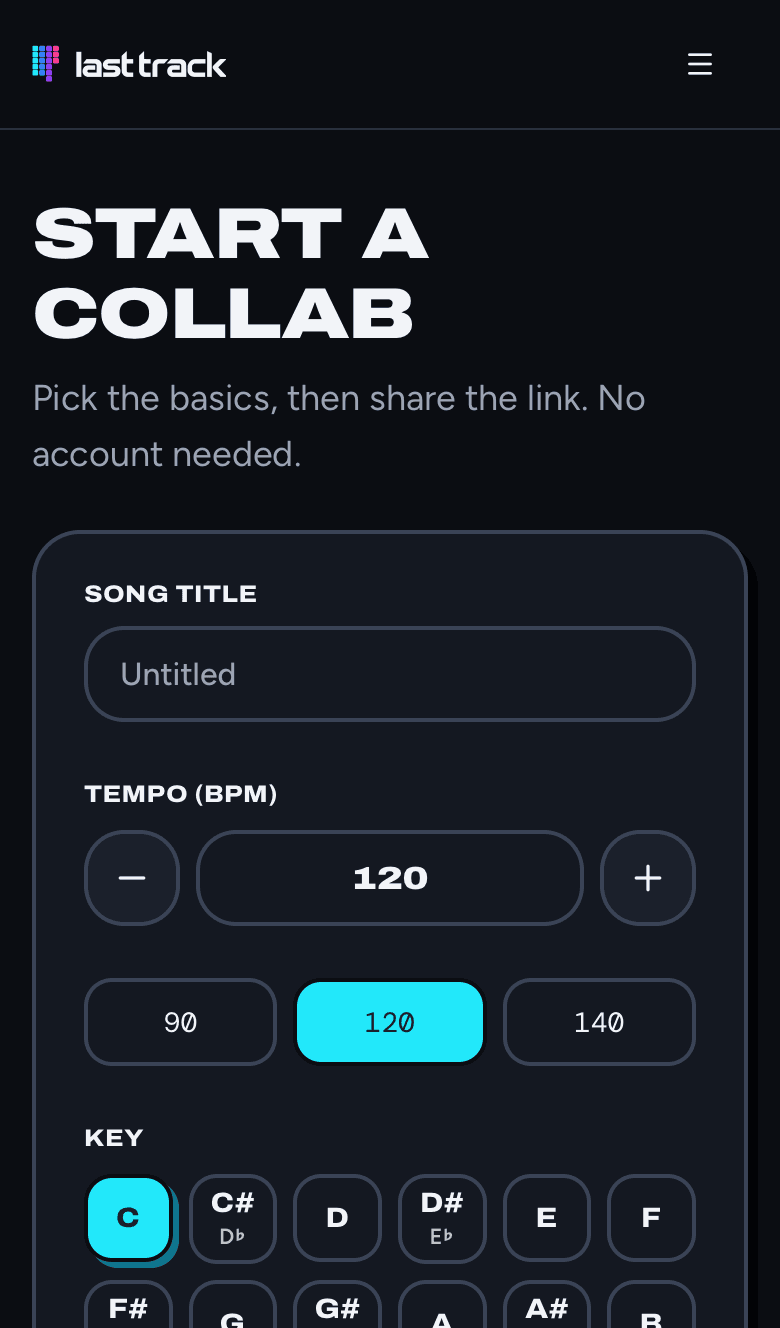
- 1Go to Start a collab.
- 2Give the song a title, and pick a tempo, a key, and major or minor.
- 3Under More settings, choose the scale, time signature, starting length (8, 16 or 32 bars) and steps per beat. These lock once someone adds notes.
- 4Under Collaboration settings, choose who can edit tracks and how many tracks each person can add.
- 5Tap Create the song.
Who can edit tracks:
- Track owners only: each person edits only the tracks they add. This is the default.
- Anyone can edit any track: everyone can change everything. You can still protect a track, revert changes, or switch back at any time.
Your three links
Every song has three links. Each one is a key, so share them carefully.
- Collaborator link: send this to friends. They pick a nickname and add their own tracks.
- Listen link: anyone with it can play the song, but not change it. Share it when you want people to hear what you made.
- Owner link: full control of the song, including its settings, links and history. Keep it to yourself.
After you create a song, LastTrack shows all three and saves the owner link in this browser. Your songs lists them on the Start a collab page.
Invite friends
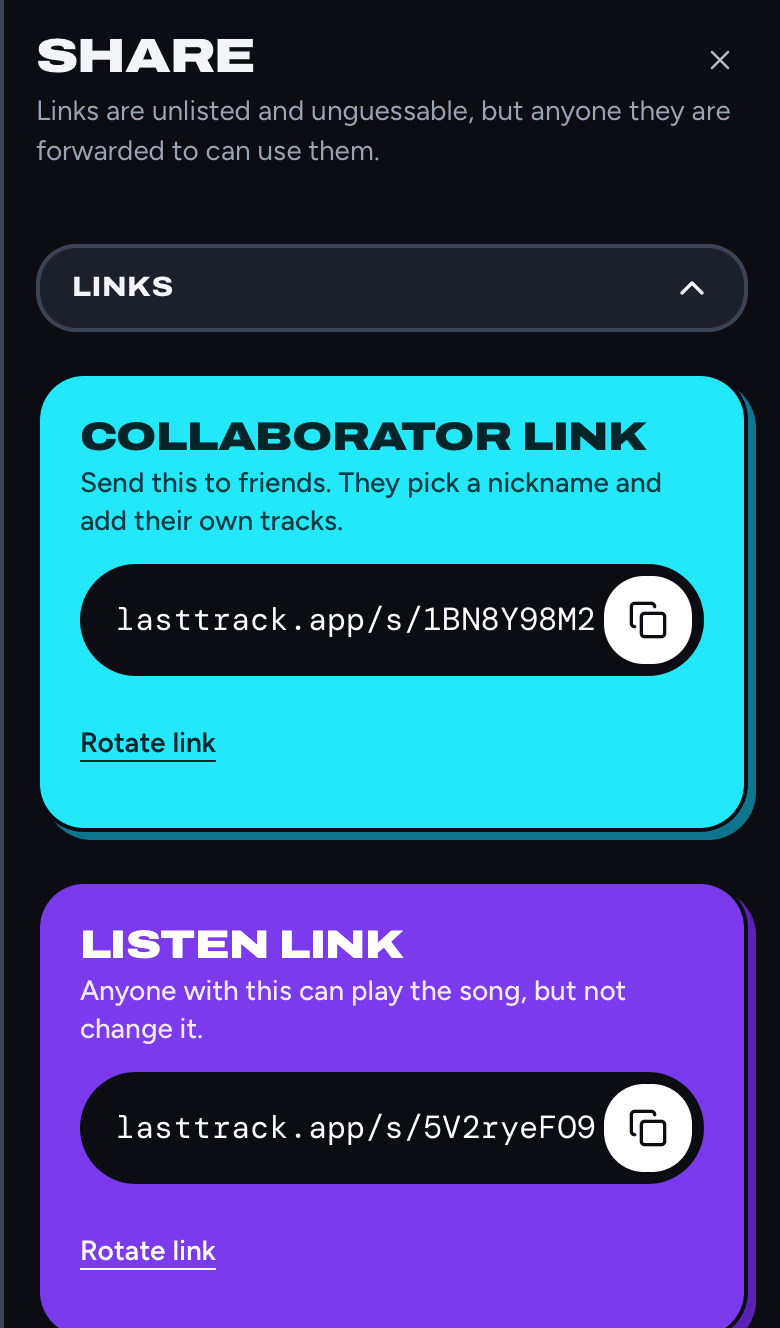
- 1In the song, tap ⋯ and then Share (Share along the top on a computer).
- 2Under Links, tap the copy button next to the collaborator link.
- 3Paste it into a text, a group chat or a DM.
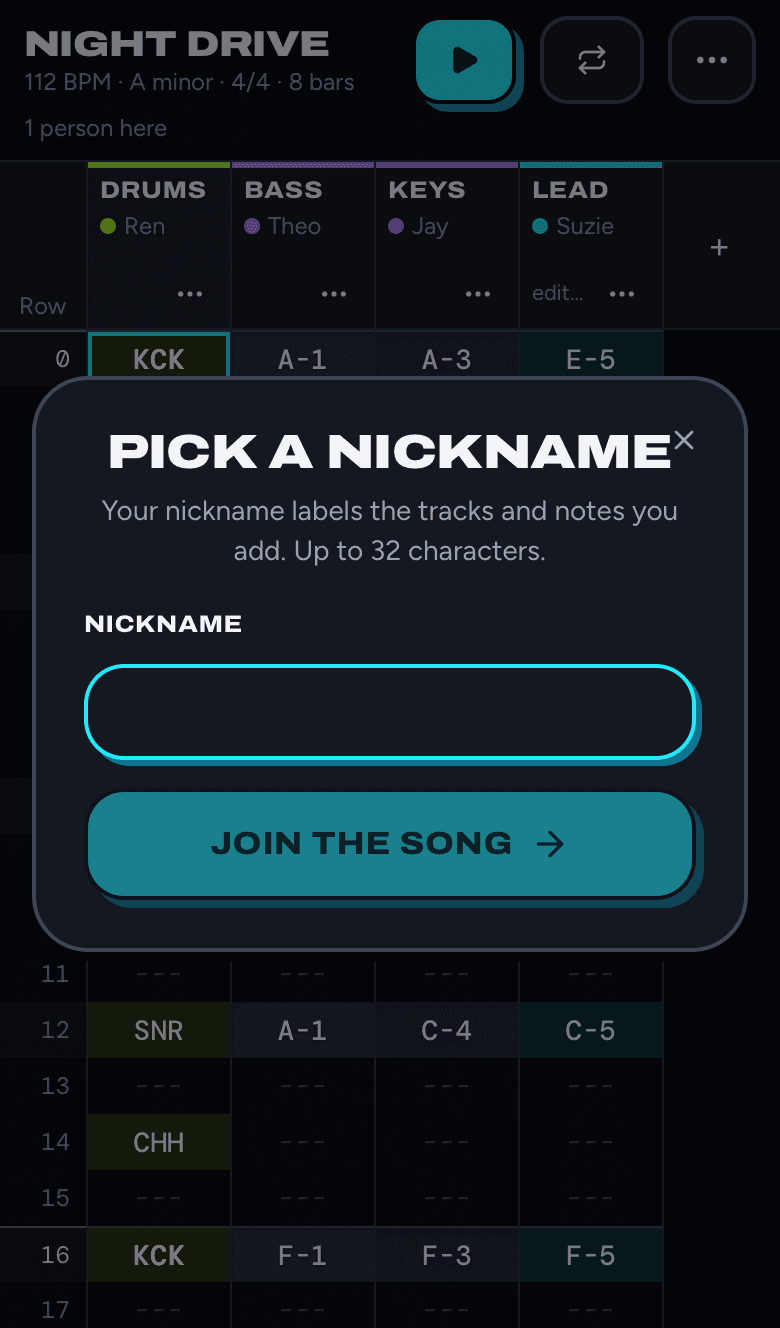
When a friend opens the link, they can listen right away. The first time they add a track or a note, LastTrack asks them to pick a nickname and tap Join the song. Their nickname and colour then label everything they add, and the top of the screen shows how many people are there.
Editing together
- Changes show up for everyone within a few seconds, so you can build the song at the same time or take turns.
- One person edits a track at a time. If someone else is in a track, its header says editing and their name, and you can ask for a turn from the track menu.
- Tap ⋯ and then Show author colours to tint every note by who wrote it.
- Tap ⋯ and then Activity to see who did what, newest first.
- Changed your mind? Every track keeps its history, and you can go back to any version. See undo and history.
Everything in the tracker itself, from entering notes to muting and duplicating tracks, is in the tracker guide.
If you're the owner
Whoever creates the song owns it. As owner you can:
- Change the title, tempo, key and scale, who can edit, and how many tracks each person adds, in Settings.
- Lock the song, so nobody can add tracks or edit notes until you unlock it.
- Protect a track, or hand it to someone else, from the track's menu.
- Restore every track to an earlier time from a track's History.
- Rotate a link. Tap Rotate link under it and then Rotate now. The old link stops working right away, so use it if a link got shared too widely.
Keep your owner link safe
The owner link is saved in the browser you made the song in. If you clear that browser or switch phones, you'll need it again.
- Open Share, then Owner link and backup, and tap Download backup. You can add a passphrase, which locks the file and never leaves your device.
- To get the song back, go to Restore an owner link and choose the backup file.
- Or just copy the owner link somewhere private, like a notes app.
Publish to the gallery
When the song is ready for everyone, open Share and tap Publish next to Gallery. Publishing needs a free account. The song then shows up in Songs, where anyone can find and play it, with your name on it. Tap Unpublish at any time to take it down.
Want to share it without making it public? Send the listen link instead.
Keeping a song
A song expires 90 days after it was last edited or opened with its owner link, and is deleted 30 days after that. To keep one for good, export it as audio or MIDI (see export) or download a backup.
To start a new version without touching the original, open Share and tap Duplicate as a new song.